Microsoft AZ-104: Azure Administrator — Azure Storage
Exam domain: Implement and Manage Storage (15–20%)
This module covers Azure Storage fundamentals, configuration, access control, data protection, and administration. The core configuration sections align with Microsoft’s current AZ-104 storage objectives; service selection, cost optimization, cybersecurity, and labs provide supporting practical knowledge.
1. Azure Storage Fundamentals
Overview of Azure Storage services and storage accounts
Introduction to Blob Storage, Azure Files, Queue Storage, and Table Storage
Understanding Blob Storage: accounts, containers, and blobs
2. Choosing the Right Storage Solution
General guidelines for selecting Azure storage services
Matching storage capabilities to workload requirements
Common storage scenarios and use cases
Evaluating access patterns, performance, availability, and cost
3. Configure Access to Storage
Configure Azure Storage firewalls and virtual network access
Create and use shared access signature (SAS) tokens
Configure stored access policies
Manage and rotate storage account access keys
Configure identity-based access for Azure Files
4. Configure and Manage Storage Accounts
Create and configure storage accounts
Configure storage redundancy to meet availability and resilience requirements
Configure object replication and evaluate replication scenarios
Configure storage account encryption
Manage and transfer data using Azure Storage Explorer and AzCopy
5. Configure Azure Files and Azure Blob Storage
Create and configure Azure file shares
Create and configure Blob Storage containers
Configure storage tiers
Configure soft delete for blobs and containers
Configure snapshots and soft delete for Azure Files
Configure blob lifecycle management
Configure blob versioning
6. Optimize Storage Costs and Performance
Understand performance requirements and their cost implications
Select appropriate storage tiers based on data access patterns
Evaluate data movement, retrieval, and transaction costs
Balance redundancy, availability, and cost
Apply cost monitoring and optimization practices
7. Azure Storage Cybersecurity
Review the Azure Storage threat matrix and common attack scenarios
Evaluate risks associated with exposed data, compromised credentials, and excessive permissions
Apply least privilege, network restrictions, and data protection controls
Review storage logging, monitoring, and security investigation scenarios
8. Hands-On Azure Storage Labs
Create and configure a storage account
Configure and validate storage access controls
Create and manage blob containers and file shares
Transfer data using Azure Storage Explorer and AzCopy
Configure and test data protection and recovery features
Apply lifecycle management and evaluate cost and performance tradeoffs
Section 1: Azure Storage Fundamentals
Azure Storage provides cloud services for storing object data, shared files, application messages, and NoSQL records. Azure also provides managed disk storage for virtual machines. This section introduces these services, explains the role of storage accounts, and describes how Blob Storage organizes data.
1.1 Overview of Azure Storage Services and Storage Accounts
The five services below provide a useful foundation for understanding Azure storage.
Storage service | Storage model | Primary purpose |
Azure Blob Storage | Object storage | Store large volumes of text and binary data, including documents, images, videos, backups, and analytics datasets. |
Azure Files | File storage | Provide managed file shares for applications and users through SMB or NFS. |
Azure Queue Storage | Message storage | Store messages that application components process asynchronously. |
Azure Table Storage | NoSQL key/attribute storage | Store non-relational records with flexible properties. |
Azure Disk Storage | Block storage | Provide persistent operating system and data disks for Azure virtual machines. |
These services support different data structures and access requirements.
A storage account provides a namespace and configuration boundary for supported storage services. Its settings govern capabilities such as network access, redundancy, and encryption. A standard general-purpose v2 account supports Blob Storage, Azure Files, Queue Storage, and Table Storage. Azure managed disks are administered as separate Azure resources, without requiring you to manage an underlying storage account.
1.2 Introduction to Blob Storage, Azure Files, Queue Storage, Table Storage, and Disk Storage
Azure Blob Storage
A scalable object storage optimized for unstructured data, data that does not require a predefined database schema, such as documents, images, and video.
Blob Storage also supports Azure Data Lake Storage Gen2, which adds capabilities for large-scale analytics, including a hierarchical namespace for organizing data into directories.
Azure Files
Azure Files provides fully managed file shares for shared application storage and migration of existing file servers.
SMB shares support workloads that use the Server Message Block protocol.
NFS shares use NFS 4.1 and support Linux and Unix-style file access.
Each share uses either SMB or NFS; an individual share cannot use both protocols.
File shares organize data into directories and files.
Azure Queue Storage
Azure Queue Storage holds messages exchanged between application components. A component places a message in a queue, and another component retrieves and processes it. This allows components to work asynchronously rather than requiring immediate processing.
Azure Table Storage
Azure Table Storage is a schemaless NoSQL service that stores entities, similar to database rows. Each entity contains properties and is uniquely identified within a table by its PartitionKey and RowKey.
Azure Table Storage remains an available service. Azure Cosmos DB for Table is a separate service that supports familiar Table APIs and offers additional capabilities; it is not simply a renamed version of Table Storage.
Azure Disk Storage
Azure Disk Storage provides persistent, block-level storage for Azure virtual machines. It stores operating systems, installed applications, and data such as databases and application files. Azure manages the underlying storage infrastructure, while administrators select disk capacity and performance options—including Standard HDD, Standard SSD, and Premium SSD—to balance workload requirements and cost. Unlike Azure Files, which provides network file shares, Azure disks typically attach directly to VMs and function like locally attached drives.

1.3 Understanding Blob Storage: Accounts, Containers, and Blobs
Blob Storage organizes data into three primary resource levels:
Resource | Role | Example |
Storage account | Provides the namespace and service endpoint. | mystorageaccount |
Container | Groups blobs within the storage account. | training-content |
Blob | Stores an individual object, such as a document or image. | lesson1.pdf |
For example, a blob’s address could be:

The address identifies the storage account, container, and blob. Having an address does not automatically make the data publicly accessible.
Blob Types
Blob type | Description | Typical use |
Block blob | Stores data in blocks that can be managed individually. | Documents, images, videos, backups, and analytics data |
Append blob | Optimized for adding new blocks to the end of an object. | Append-oriented logs |
Page blob | Supports random reads and writes to pages of data. | Virtual hard disk files and other random-access workloads |
Blob type support depends on the storage account’s configuration.
Folders and Namespaces
Blob Storage can organize objects in two ways:
Flat namespace: Folder-like paths are part of blob names. For example, courses/az104/lesson1.pdf appears in folders, but those folders are virtual.
Hierarchical namespace: Directories are actual resources. This capability is central to Azure Data Lake Storage Gen2 and supports file-system-style operations.
A container is the top-level grouping of blobs within an account; it is not the same as a folder inside that container.
Blob Access Protocols
Blob Storage supports access through HTTPS-based APIs and tools. With the required account configuration, it also supports:
NFS 3.0: Allows supported clients to mount Blob Storage containers.
SFTP: Allows file transfers using the SSH File Transfer Protocol.
Both NFS 3.0 and SFTP require a hierarchical namespace. They are access protocols, not additional blob types. Azure Files uses NFS 4.1, while Blob Storage uses NFS 3.0.
Section 2: Choosing the Right Storage Solution
Selecting the right Azure storage solution requires matching the service and account type to the workload’s data structure, access methods, performance, availability, and cost requirements.
2.1 General Guidelines for Selecting Azure Storage Services
Start with a standard general-purpose v2 (GPv2) account for most storage workloads. Choose a specialized account when the application requires premium performance or particular file-sharing capabilities.
Account type | Supported services | Best suited for |
Standard general-purpose v2 (GPv2) | Blob Storage, Azure Files, Queue Storage, Table Storage, and Data Lake Storage Gen2 capabilities | Most general storage workloads |
Premium BlockBlobStorage | Block blobs and append blobs, including supported Data Lake capabilities | High transaction rates, small objects, and workloads requiring consistently low latency |
Premium FileStorage | Azure Files only | Enterprise file shares and applications requiring high-performance SMB or NFS storage |
Premium block blob and premium file share accounts support LRS and ZRS, subject to regional availability. GPv2 supports additional geo-redundancy options. Existing legacy GPv1 and BlobStorage accounts should be evaluated for migration to GPv2.
Important distinctions:
Azure managed disks are separate resources, rather than a service you provision inside a GPv2 account.
Data Lake Storage Gen2 builds on Blob Storage. It requires a hierarchical namespace and can use supported standard GPv2 or premium block blob accounts. GPv2 is not its only supported account type.
Premium performance and Blob access tiers are different concepts. Premium block blob accounts cannot use Hot, Cool, Cold, or Archive tiering through lifecycle management.
2.2 Matching Storage Capabilities to Workload Requirements
Evaluate the following questions before selecting a solution:
Requirement | Questions to ask |
Data structure | Are you storing objects, shared files, messages, database records, or VM disks? |
Access method | Does the application require HTTPS APIs, SMB, NFS, SFTP, or a mounted disk? |
Performance | What latency, IOPS, throughput, and concurrency does the workload require? |
Availability and recovery | Must the data survive a zone or regional outage? How quickly must it be restored? |
Retention and retrieval | How long must the data remain available, and how quickly must archived data be retrieved? |
Security | What identity, network isolation, encryption, and audit requirements apply? |
Cost | What are the combined storage, transaction, retrieval, replication, and data-transfer costs? |
These questions provide a repeatable framework for comparing the scenarios below.
Data Lake Access and Analytics
Data Lake Storage Gen2 supports access through both Blob APIs and Data Lake Storage APIs, commonly associated with the dfs endpoint. The Azure Blob File System (ABFS) driver allows Hadoop-compatible tools to use the Data Lake interface. ABFS is a client driver, rather than a separate storage service or API.
Query acceleration can reduce data transfer by applying SQL-style row filters and column selections to an individual CSV or JSON file. It also works with supported blobs without a hierarchical namespace. It does not provide a full relational query engine: requests process one file and do not support joins or GROUP BY aggregates.
2.3 Common Storage Scenarios and Use Cases
Scenario 1: Frequently Accessed Documents with Search
Requirement: Store large amounts of unstructured data that users access frequently during business hours, with automatic indexing and search.
Recommended solution: Use standard Blob Storage in the Hot tier, integrated with Azure AI Search. Choose Data Lake Storage Gen2 when hierarchical directories or analytics requirements also apply.
Why: Blob Storage or Data Lake Storage holds the content; Azure AI Search provides indexing and search. Enabling a hierarchical namespace alone does not provide full-text search.
Scenario 2: Azure VM Backup with Regional Recovery
Requirement: Back up Azure VMs and their disks, retain recovery points, and support recovery in a secondary region.
Recommended solution: Use Azure VM Backup with a Recovery Services vault, configure GRS, and enable Cross Region Restore for supported configurations.
Why: Azure Backup provides recovery points and restore operations. GRS replicates backup data to a paired region, while Cross Region Restore enables supported restores there. Recovery points represent backup times; they do not provide continuous recovery to any arbitrary instant.
Scenario 3: Standard Blobs and Premium File Shares
Requirement: Host standard Blob Storage and premium Azure file shares in the same storage account.
Recommended solution: Use separate storage accounts: GPv2 for standard blobs and FileStorage for classic premium file shares.
Why: A FileStorage account supports Azure Files only. A single account cannot combine standard Blob Storage with premium file shares. Azure Files also offers standalone file share resources where supported.
Scenario 4: Small Files Processed Before Archiving
Requirement: Ingest millions of small files daily, process them with Azure Functions, and archive them after processing.
Recommended solution: Start with standard GPv2 Blob Storage in the Hot tier, then apply a lifecycle policy to move eligible block blobs to Archive.
Why: Hot provides immediate access during processing. Archive can reduce long-term storage costs when processed files will remain archived for at least 180 days.
Design considerations: Lifecycle policies evaluate age and other supported conditions; they do not automatically know whether processing succeeded. Use a processed prefix or blob index tag to identify completed files. A one-day threshold does not guarantee archival exactly 24 hours later. Premium block blob storage requires a separate standard-storage destination if archival tiering is needed.
Scenario 5: Globally Distributed Application Data
Requirement: Store application records with automatic scaling, global distribution, strong consistency, and SQL-style queries.
Recommended solution: Evaluate Azure Cosmos DB for NoSQL, formerly called the SQL API, with an appropriate throughput configuration and consistency level.
Why: This requirement calls for a database service rather than basic object or Table Storage. Strong consistency introduces latency and availability tradeoffs that must be considered alongside global distribution requirements.
Scenario 6: Persistent Storage for Azure Container Instances
Requirement: Provide persistent shared storage that mounts when an Azure Container Instances container group starts.
Recommended solution: Configure an Azure Files SMB share as a volume, supplying the storage account name, share name, and storage account key.
Why: The documented Azure Files mounting approach for Azure Container Instances uses these values. Verify platform limitations; this mounting method supports Linux containers.
Scenario 7: Long-Term Compliance Archives
Requirement: Store terabytes of compliance documents accessed approximately once per year, with several hours available for retrieval.
Recommended solution: Use the Archive tier, then rehydrate required blobs to Cool or Hot before accessing them.
Why: Archive offers low storage costs for long retention periods. Standard-priority rehydration can take up to approximately 15 hours for objects under 10 GB; retrieval time varies. A strict 15-hour deadline requires careful validation rather than treating that estimate as a guarantee.
Include rehydration costs and the 180-day minimum storage duration in the design. If immediate availability is required, evaluate an online tier such as Cold or Cool.
Scenario 8: Global Static Content Delivery
Requirement: Deliver website images, documents, and other static content globally with low latency.
Recommended solution: Use Azure Blob Storage with Azure Front Door Standard or Premium for content delivery and caching.
Why: Blob Storage holds the content, while Azure Front Door uses its global edge network to accelerate delivery to users.
2.4 Evaluating Access Patterns, Performance, Availability, and Cost
Performance and Capacity
The relationship between capacity and performance depends on the service and provisioning model.
Storage option | Performance guidance |
Premium block blobs | Optimized for low latency and high transaction rates. Performance depends on account limits, object sizes, request patterns, and concurrency, not simply on storing more data. |
Azure Files provisioned v1 | Provisioned IOPS and throughput increase with provisioned share capacity. |
Azure Files provisioned v2 | Capacity, IOPS, and throughput can be provisioned separately within supported limits. |
For provisioned v2 classic file shares, changes generally take effect within minutes. The 24-hour restriction applies to decreasing a provisioned quantity after its last increase, rather than requiring 24 hours for every performance change.
Access Patterns and Total Cost
Frequent access: Evaluate Hot storage.
Infrequent access with immediate retrieval: Evaluate Cool or Cold.
Long-term retention with delayed retrieval: Evaluate Archive.
High transaction rates or low-latency requirements: Compare standard and premium performance using representative workloads.
Resilience requirements: Select redundancy based on acceptable zone or regional failure risk.
Total cost: Include transactions, retrieval, early deletion charges, data transfers, and provisioned performance—not just the price per gigabyte.
Access tiers and redundancy must also be compatible: Archive supports LRS, GRS, and RA-GRS, rather than ZRS-based configurations.

Section 3: Configure Access to Storage
Azure Storage access depends on both network connectivity and authorization. Network controls determine whether a client can reach the storage service; authorization determines what the client can do with the data.
3.1 Configure Azure Storage Firewalls and Virtual Networks
Azure Storage supports two common approaches to restricting network access:
Approach | Configuration | Result |
Restrict the public endpoint to selected networks | Configure the storage firewall to deny access by default. Enable storage service endpoints on approved subnets and add virtual network rules. | Approved subnets can access the storage account through its public endpoint. |
Use private connectivity and disable public access | Create private endpoints for the required storage services, configure private DNS, and disable public network access. | Clients access storage through private IP addresses. |
Important distinction: Virtual network firewall rules restrict access to the public endpoint; they do not remove that endpoint. For private-only access, use private endpoints and disable public network access. Creating a private endpoint alone does not disable the public endpoint.

Example scenario
Requirement: Allow storage access from approved virtual networks while preventing access through the public endpoint.
Solution: Configure private endpoints and DNS for the required services, then disable public network access. Clients still require appropriate authorization to access the data.
3.2 Create and Use Shared Access Signature (SAS) Tokens
A shared access signature (SAS) grants limited access to Azure Storage resources. Its token is appended to a resource URI and specifies constraints such as permitted operations and expiration.

For example, a SAS can grant a customer temporary permission to download one blob without sharing the storage account key.
SAS Types
SAS type | Scope | Signing method |
Account SAS | Resources in one or more storage services; can also permit selected service-level operations | Storage account key |
Service SAS | Resources within a single storage service | Storage account key |
User delegation SAS | Supported resources in Blob/Data Lake, Queue, Table, or File services | User delegation key obtained using Microsoft Entra credentials |
Microsoft recommends user delegation SAS when SAS access is required. Not every SAS is signed with a storage account key.
Updated guidance: Older training materials describe user delegation SAS as limited to Blob Storage. Current Microsoft documentation includes additional storage services; verify support for the service, API version, and tools being used.
SAS Forms
Ad hoc SAS: Access constraints are specified directly in the SAS.
Service SAS associated with a stored access policy: The SAS references a policy that centrally manages supported constraints.
Account SAS and user delegation SAS do not support stored access policies.
SAS Configuration Guidelines
Grant only the required permissions and resource scope.
Use HTTPS.
Set the shortest practical expiration.
Protect SAS URLs as credentials.
Plan how access will be revoked if a token is exposed.
A 24-hour expiration is a configurable example, not a universal default or requirement. Microsoft recommends an expiration of one hour or less for service SAS tokens without a stored access policy.
Tip: A SAS grants authorization; it does not bypass storage network restrictions.
3.3 Configure Stored Access Policies
A stored access policy centrally manages access constraints for one or more associated service SAS tokens.
Policies can be defined on:
Blob containers
Azure file shares
Queues
Tables
A policy can specify a start time, expiration time, and permissions. Associated service SAS tokens reference the policy’s identifier.
Example Configuration
Open the relevant resource, such as a blob container.
Create a stored access policy with an identifier such as temporary-read.
Configure the required permissions and validity period.
Generate a service SAS that references the policy.
Distribute the SAS securely.
To revoke associated access, delete the policy, change its identifier, or set its expiration to a time in the past. Each supported resource can have up to five stored access policies. Policy changes can take time to propagate.
Tip: Stored access policies manage service SAS access. They are separate from Azure RBAC, Azure Policy, and anonymous access settings.
Related Concept: Anonymous Blob Read Access
For intentionally public images or documents, anonymous access requires both:
Allowing blob anonymous access at the storage account level.
Configuring the container’s anonymous access level.
Container access level | Anonymous access permitted |
Private | None |
Blob | Read individual blobs, without listing the container’s blobs |
Container | Read blobs and list blobs in the container |
For a public-content container, select Blob when visitors need to read known objects without listing the contents. Enabling anonymous access at the account level alone does not make every container public. Microsoft recommends disabling anonymous access unless it is explicitly required.
3.4 Manage Access Keys
Azure Storage accounts provide two access keys, allowing applications to move from one key to the other during rotation.
Both keys provide equivalent access; the second key is not a read-only or restricted key.
Rotation Sequence
If applications currently use key1:
Regenerate key2, after confirming it is not in use.
Update applications to use key2.
Verify that applications work with key2.
Regenerate key1.
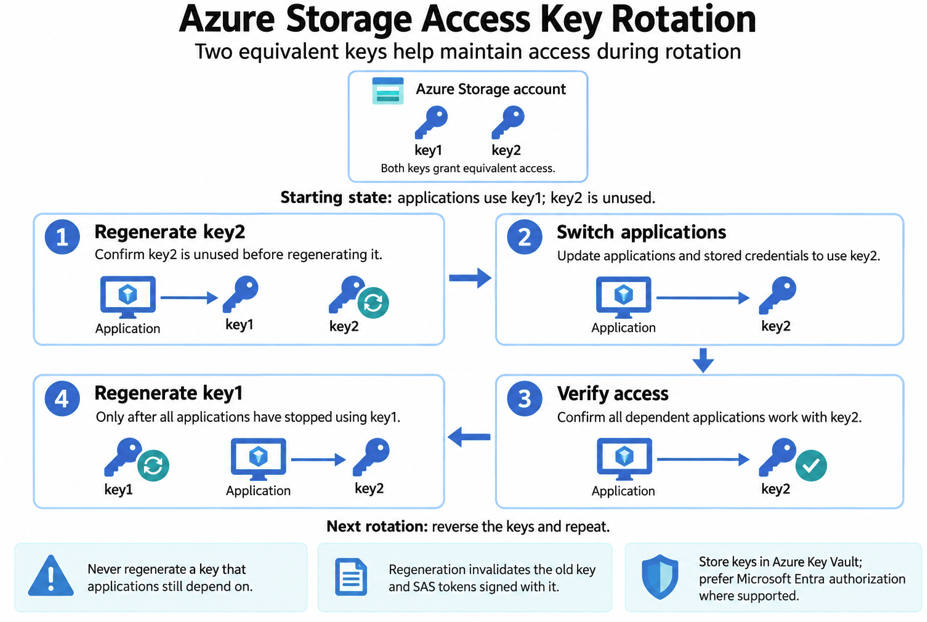
On the next rotation, reverse the sequence. Do not regenerate a key while applications still depend on it.
Regenerating a key invalidates credentials and SAS tokens signed with that key. Store required keys securely, such as in Azure Key Vault, and prefer Microsoft Entra authorization where supported.
3.5 Configure Identity-Based Access for Azure Files
Identity-based authentication allows users to access Azure Files over SMB using directory identities instead of storage account keys.
Identity Sources
Identity source | Typical use |
On-premises AD DS | Existing domain identities accessing Azure file shares |
Microsoft Entra Domain Services | Clients using a Microsoft-managed domain |
Microsoft Entra Kerberos | Supported clients using Microsoft Entra-issued Kerberos tickets |
Only one SMB identity source can be configured per storage account, and it applies to the account’s file shares. Microsoft Entra Kerberos supports hybrid identities and, subject to current feature requirements, cloud-only identities.
Configuration Sequence
Validate prerequisites: Identity synchronization, client compatibility, networking, and DNS.
Enable the identity source: Configure the storage account for the selected authentication method.
Assign share-level permissions: Use appropriate roles, such as Storage File Data SMB Share Reader or Storage File Data SMB Share Contributor.
Configure directory and file permissions: Apply Windows ACLs, commonly called NTFS permissions.
Mount and test the share: Confirm that authorized users can perform the intended operations.
For on-premises AD DS authentication, register the storage account in the domain using a computer or service logon account and configure its domain properties. Directory synchronization alone does not enable SMB authentication.
Example: On-Premises Windows Server Access
Requirement: Server1 belongs to the contoso.com AD DS domain. Its identities synchronize to Microsoft Entra ID. Users need to access a share in storage1 using their domain credentials.
First action: Configure identity-based access for storage1, selecting on-premises AD DS authentication.
Then complete domain registration, share-level authorization, file permissions, and connectivity testing. Microsoft Entra Domain Services is a separate identity option; it is not required simply because the existing domain synchronizes to Microsoft Entra ID.
Tip: Remember the sequence: identity source → share permissions → file permissions → mount and test.
Related Application Access Scenarios
These scenarios concern Blob Storage authorization rather than Azure Files SMB authentication.
Requirement | Recommended solution |
An Azure application must read and write blobs in one container without storing account keys | Enable a managed identity and assign Storage Blob Data Contributor at the container scope. Use Storage Blob Data Reader for read-only access. |
An AKS application must access blobs without storing connection strings or account keys | Use Microsoft Entra Workload ID, federate the Kubernetes service account with an Azure identity, and assign the required storage data role. |
A general Contributor role does not itself grant Blob data access through Microsoft Entra ID. For new AKS workloads, use Workload ID rather than the deprecated pod-managed identity approach.
Section 4: Configure and Manage Storage Accounts
Storage account administration includes selecting the right account configuration, implementing redundancy and replication, managing encryption, and transferring data efficiently.
4.1 Create and Configure Storage Accounts
Before creating a storage account, identify its required services, region, performance, redundancy, network access, and data protection settings.
Example: Create an Account for Website Content
In the Azure portal, search for Storage accounts and select Create.
Select the subscription and create or select a resource group.
Enter a globally unique account name, such as publicwebsite followed by a unique identifier.
Select the region appropriate for the workload.
Choose Standard performance and a general-purpose v2 (GPv2) account for this example.
Select the required redundancy option.
Review networking, security, and data protection settings.
Select Review + create, then Create.
After deployment, select Go to resource.
Storage account names must contain 3–24 characters, using only lowercase letters and numbers. Account creation alone does not publish a website or grant anonymous access to its content.
Account Type and Performance
Requirement | Appropriate starting point |
General blob, file, queue, or table storage | Standard GPv2 |
High-performance block or append blob workloads | Premium block blob account |
High-performance classic Azure file shares | Premium FileStorage account |
Persistent operating system or data disks for VMs | Azure managed disks |
Tip: “GPv2 with premium performance” is not the correct account selection for VM disks. Premium blob storage, premium file shares, and managed disks are distinct offerings.
4.2 Configure Azure Storage Redundancy
Redundancy determines how Azure maintains additional copies of data to protect against hardware, zone, or regional failures.
Option | Primary-region protection | Secondary-region protection | Secondary read access |
LRS | Three synchronous copies within one datacenter | None | No |
ZRS | Synchronous copies across three availability zones | None | No |
GRS | LRS | Asynchronous replication to a paired region, using LRS there | After failover |
GZRS | ZRS | Asynchronous replication to a paired region, using LRS there | After failover |
RA-GRS | LRS | Same as GRS | Yes, for supported services |
RA-GZRS | ZRS | Same as GZRS | Yes, for supported services |
Availability varies by account type, service, and region. Cross-region replication is asynchronous, so secondary data can lag behind the primary.

Example: Enable Secondary Read Access
Requirement: Keep supported storage data readable from a secondary region during a primary-region outage.
Configuration:
Open the storage account’s Redundancy settings.
Select RA-GRS, or RA-GZRS when zone protection is also required and supported.
Review the primary and secondary locations.
Configure the application to use the secondary endpoint when appropriate.
Important: RA-GRS does not automatically redirect application reads or guarantee immediate automatic failover. Secondary read access and account failover are separate capabilities.

Azure Files Disaster Recovery
Requirement: Protect critical Azure file shares against regional failure and accidental data loss.
Recommended approach: Combine supported GRS or GZRS file share storage with Azure Backup, then define and test failover and restore procedures.
Azure Files supports geo-redundancy for supported HDD shares.
Azure Files does not provide secondary-region read access through RA-GRS or RA-GZRS.
A geo-redundant Recovery Services vault protects backup copies; it does not automatically fail over the live file share.
Asynchronous replication can leave a data-loss window during an unplanned regional failover.
A requirement for automated failover and minimal data loss therefore needs a complete recovery design, rather than only a backup vault setting.
Tip: Redundancy protects against infrastructure failures. Backup and versioning provide additional recovery options for deleted or modified data.

4.3 Configure Object Replication
Object replication asynchronously copies block blobs between containers in separate storage accounts according to configured policies.
Unlike account redundancy, object replication lets you select source and destination containers and control which blobs are replicated.
Prerequisites
Setting | Source account | Destination account |
Blob versioning | Required | Required |
Change feed | Required | Not required solely for replication |
Supported account type | GPv2 or premium block blob | GPv2 or premium block blob |
Hierarchical namespace | Must be disabled | Must be disabled |
NFS 3.0 requires a hierarchical namespace, making that configuration incompatible with object replication. If the accounts belong to different tenants, both must permit cross-tenant replication.
Configuration Process
Create the source and destination containers.
Enable versioning on both accounts.
Enable change feed on the source.
Create a replication policy identifying both accounts.
Add rules mapping source containers to destination containers.
Configure supported filters and verify replication status.
The source and destination must have matching policy identifiers. Replication is asynchronous, so changes are not immediately available at the destination.
Uses and Limitations
Use case | Benefit |
Regional read distribution | Applications can read replicated data nearer to their users. |
Distributed processing | Compute workloads in different regions can process replicated datasets. |
Selective data distribution | Replicate selected outputs instead of every dataset. |
Object replication supports block blobs, not append blobs, page blobs, or snapshots. Hot, Cool, and Cold tiers are supported. Moving a participating blob to Archive can cause replication to fail; lifecycle archival must account for this limitation.
Replication also creates storage, transaction, change-feed, and potentially data-transfer costs.
Storage Replication Scenarios
Scenario 1: Identify the Missing Prerequisite
The source account has change feed enabled, hierarchical namespace disabled, and versioning disabled.
Answer: Enable blob versioning on the source. Also verify that destination versioning is enabled. Soft delete does not replace versioning.
Scenario 2: Replicate Between Premium Block Blob Accounts
Object replication is required from storage1 to storage2.
Enable:
Blob versioning on storage1
Blob versioning on storage2
Change feed on storage1
Destination change feed and point-in-time restore are not required solely to configure replication.
Tip: Remember versioning on both accounts; change feed on the source.
4.4 Configure Storage Account Encryption
Azure Storage automatically encrypts data at rest using 256-bit AES encryption. Encryption is enabled by default and cannot be disabled.
Option | Purpose |
Microsoft-managed keys | Azure manages encryption keys and their lifecycle. |
Customer-managed keys (CMK) | The organization controls keys stored in Azure Key Vault or Managed HSM. |
Infrastructure encryption | Adds a second encryption layer with separate keys and algorithms. |
Blob encryption scopes | Apply encryption boundaries to individual blobs or containers within an account. |
Infrastructure encryption must be selected when the storage account is created. Encryption scopes can use Microsoft-managed or customer-managed keys.
Configure Customer-Managed Keys
Prepare a supported Key Vault or Managed HSM.
Create or select a supported encryption key.
Configure the storage account’s managed identity.
Grant that identity the required key permissions.
Select Customer-managed keys in the storage account’s encryption settings.
Configure key-version handling, rotation, and monitoring.
Key Vault soft delete and purge protection are required for this configuration. Removing access to the key can make storage data inaccessible. Encryption keys are separate from the storage account access keys used for authorization.
Tip: Encryption at rest protects stored data; HTTPS protects data in transit.
4.5 Manage Data Using Azure Storage Explorer and AzCopy
Azure Storage Explorer
Azure Storage Explorer provides a graphical interface for browsing and managing storage resources. For Blob Storage, common tasks include:
Creating and managing containers
Uploading and downloading blobs
Viewing properties and metadata
Copying blobs or containers between supported locations
It is useful for interactive administration and inspecting data. Supported Azure-to-Azure copy operations can use server-side transfer rather than downloading and re-uploading the content through the administrator’s computer.
AzCopy
AzCopy is a command-line transfer utility for Windows, Linux, and macOS. It is well suited to large transfers and scripted operations.
Command | Purpose |
azcopy copy | Copy supported data between locations |
azcopy sync | Synchronize supported source and destination locations |
azcopy remove | Delete supported storage objects |
azcopy jobs list | List transfer jobs |
azcopy jobs resume | Resume an interrupted job |
AzCopy supports parallel transfers, retry handling, and job logs. Interrupted jobs can be resumed using their retained job information and valid authorization; this does not mean every interrupted transfer resumes automatically. A move generally requires copying, validating, and then deleting the source.
For supported account-to-account blob copies, AzCopy uses server-to-server APIs. Network restrictions and permissions must allow access to both locations.

Related Data Transfer Options
Tool or service | Appropriate use |
Azure Data Factory | Orchestrated data movement and transformation pipelines |
BlobFuse2 | Linux filesystem-style access to Blob Storage; not primarily a migration service |
Azure Data Box / Data Box Disk | Offline transfer when dataset size or network limitations make online transfer impractical |
Azure Import/Export | Offline transfer using customer-supplied drives |
Azure Import/Export imports into Blob Storage and Azure Files, while export supports Blob Storage. Microsoft-supplied disks belong to the Data Box Disk service, not Import/Export. Data Box Heavy has retired, so it should not be listed as a current ordering option.
Tip: Choose Storage Explorer for interactive management, AzCopy for scripted bulk transfers, and Data Box for suitable offline transfer scenarios.
Section 5: Configure Azure Files and Azure Blob Storage
This section covers creating file shares and blob containers, selecting storage tiers, protecting data against deletion or modification, and automating retention through lifecycle policies.
5.1 Create and Configure a File Share in Azure Files
Azure Files provides fully managed cloud file shares that applications and users can access through standard file-sharing protocols.
Protocol | Typical use |
SMB | Windows and compatible clients requiring shared file access |
NFS 4.1 | Linux and Unix-style workloads requiring NFS access |
Each share uses either SMB or NFS. Protocol availability depends on the selected deployment and storage configuration.
Create a Classic File Share
Create or select a storage account that supports the required file share configuration.
Open File shares and select Create.
Enter the share name and select the protocol, where applicable.
Configure capacity and performance settings.
Configure network access and authentication.
Assign share-level and file-level permissions.
Mount the share and test access.
Azure Files also supports standalone file share resources in supported configurations. The steps above describe classic shares hosted within a storage account.
Storage Media, Billing Models, and Access Tiers
These are related but distinct configuration choices:
Choice | Meaning |
SSD, traditionally called premium | Designed for low latency and demanding file workloads |
HDD, traditionally called standard | Cost-effective storage for general file workloads |
Provisioned billing | Pay for provisioned capacity and performance |
Pay-as-you-go access tiers | Transaction Optimized, Hot, and Cool tiers for supported classic HDD shares |
With provisioned v2, capacity, IOPS, and throughput can be configured separately within supported limits. Transaction Optimized, Hot, and Cool are not universal tiers for every Azure Files deployment.
Related Capability: Azure File Sync
Azure File Sync synchronizes supported Azure SMB file shares with Windows Server endpoints.
Cloud tiering retains frequently accessed files locally while less frequently used file content remains in Azure.
The Azure file share retains the complete dataset.
The synchronization agent communicates with required Azure endpoints over outbound HTTPS port 443.
This differs from directly mounting an Azure SMB share, which ordinarily uses port 445.

5.2 Create and Configure a Container in Blob Storage
Azure Blob Storage stores objects such as documents, images, media, backups, and analytics datasets.
Its resource hierarchy is:
Storage account → Container → Blob
A container groups blobs and provides a boundary for supported access and management settings.
Create a Container
Open the storage account.
Select Containers, then Create.
Enter a valid container name.
Keep anonymous access disabled unless public access is explicitly required.
Create the container.
Upload blobs and configure the required authorization.
Creating a container does not automatically make its contents public.
Choose the Blob Type
Blob type | Characteristics | Common uses |
Block blob | Stores text or binary data as individually managed blocks | Documents, media, backups, and large datasets |
Append blob | Optimized for adding blocks to the end of an object | Append-oriented application logs |
Page blob | Supports random reads and writes | VHD files and other random-access workloads |
Block blobs support approximately 190.7 TiB with supported service versions; the older 5 TiB figure is not the current general maximum. Page blobs support up to 8 TiB. Azure managed disks are provisioned as separate resources rather than by manually creating page blobs.
Example scenario: An application needs object storage and frequent append-oriented logging.
Solution: Evaluate a premium block blob account, which supports block and append blobs, and use append blobs for the logging component. Validate performance using the application’s actual request patterns.
Blob Organization and Inventory
Blob metadata: Custom key-value information associated with a blob.
Blob index tags: Key-value attributes that support indexed discovery and supported lifecycle filtering.
Blob inventory: Scheduled reports listing storage objects and selected properties.
Metadata and index tags are separate features; adding metadata alone does not make it searchable through the blob index. Feature support varies by account configuration.
5.3 Configure Storage Tiers
Performance tiers describe the storage offering, such as standard or premium. Access tiers describe how supported blob data is stored and charged based on expected usage.
Blob Access Tiers
Tier | Intended access pattern | Availability | Minimum duration before early deletion charges* |
Hot | Frequently accessed or actively processed data | Online | None |
Cool | Infrequently accessed data | Online | 30 days |
Cold | Rarely accessed data requiring immediate availability | Online | 90 days |
Archive | Long-term retention with delayed retrieval | Offline | 180 days |
*For applicable standard GPv2 block blob configurations. Minimum durations are billing thresholds, not restrictions preventing earlier deletion or movement.
Cooler tiers generally reduce storage costs while increasing access and retrieval costs. Premium block blob accounts do not support Hot, Cool, Cold, or Archive tiering.
Configure a Blob’s Tier
Open the container and select the blob.
Select Change tier.
Choose a supported tier.
Review retrieval, transaction, and early deletion implications.
Apply the change.
Use lifecycle management when tier changes should occur automatically.
Retrieve Archived Data
Archived blob content must be rehydrated to an online tier before it can be read.
Method | Result |
Set Blob Tier | Rehydrates the existing blob in place |
Copy Blob | Creates an online copy while retaining the archived source |
Standard-priority rehydration can take hours. High priority can accelerate retrieval at additional cost, but should not be treated as a guaranteed one-hour recovery time.
Copying can avoid early deletion charges on the archived source and prevent an age-based lifecycle rule from immediately archiving the retrieved copy again.
5.4 Configure Soft Delete for Blobs and Containers
Blob and container soft delete protect against different deletion events.
Feature | Protects against |
Blob soft delete | Deletion of supported blobs, versions, and snapshots; behavior varies with versioning and namespace settings |
Container soft delete | Deletion of an entire container and its contents |
Enable both when protection is required at both levels. Neither feature restores a deleted storage account.
Example: Configure 21-Day Retention
Open the storage account’s Data protection settings.
Enable soft delete for blobs.
Set retention to 21 days.
Enable soft delete for containers and select its retention period.
Save the configuration.
Test Recovery
Upload a test blob, then delete it.
Display deleted objects in the container.
Restore it within the retention period.
Verify that its content is available.
When versioning is enabled: Undeleting restores soft-deleted versions, but does not automatically recreate a deleted current blob. Copy or promote the required previous version to make it current again.
5.5 Configure Snapshots and Soft Delete for Azure Files
Share Snapshots
A share snapshot captures a read-only point-in-time view of a file share. It allows recovery of earlier file content or restoration of supported share data.
Azure Files supports up to 200 snapshots per share.
Snapshots are incremental; storage charges reflect retained data differences.
Snapshots remain associated with the share’s storage environment.
Scheduled creation and retention require a backup policy or automation.
There is no universal “10-year retention” setting for manually created snapshots. Long-term retention depends on the backup solution and policy.
File Share Soft Delete
For supported classic shares, soft delete preserves a deleted share and its snapshots for a configured retention period of 1–365 days.
Configure it through the storage account’s data protection settings. To recover, display deleted shares, select the share, and undelete it before retention expires.
Important: Share soft delete protects deletion of the share. It does not recover an individually deleted file inside an active share; use a snapshot or backup for that.
Example: More Frequent Business-Hours Recovery Points
Requirement: Take frequent snapshots during business hours and retain a daily recovery point.
Solution: Configure an Azure Files backup policy with a supported intraday schedule and daily retention.
Do not assume the portal’s “Hourly” option guarantees snapshots every hour or supports any arbitrary mixed schedule. Verify the supported interval, backup window, retention, and snapshot count. If the exact schedule is unsupported, evaluate custom snapshot automation.
5.6 Configure Blob Lifecycle Management
Lifecycle management uses rules to automatically tier or delete eligible blobs.
Rules can target supported current blobs, previous versions, and snapshots using conditions such as object age, last modification, or tracked last access.
Example Lifecycle Plan
Condition | Action |
Current block blob unchanged for 30 days | Move to Cool |
Unchanged for 90 days | Move to Cold |
Unchanged for 180 days | Move to Archive, where supported |
Previous version older than the approved retention period | Delete that version |
These are example thresholds; select values based on access needs, retention requirements, and costs.
Configuration Process
Open Lifecycle management.
Add a rule and define its scope.
Apply supported filters, such as container/blob prefixes or blob index tags.
Select actions and age conditions.
Save the policy and monitor its effects.
A storage account has one lifecycle policy containing multiple rules. To apply different retention patterns to different containers, create separate rules with container-specific prefix filters.
Limitations and Costs
Lifecycle execution is asynchronous, rather than an exact-time scheduler.
Lifecycle policies cannot rehydrate archived blobs.
Premium block blob accounts support applicable deletion actions, but not access-tier transitions.
Tier changes can incur transactions, retrieval, and early deletion charges.
Archiving blobs participating in object replication can disrupt replication.
Review compatibility and charges before enabling a rule.

5.7 Configure Blob Versioning
Blob versioning automatically preserves previous states of supported blobs when they are modified or deleted. Each version has a unique version identifier.
Enable and Test Versioning
Open the storage account’s Data protection settings.
Enable blob versioning and save.
Upload a test block blob.
Upload changed content using the same blob name.
Open the blob’s Versions view.
Inspect an earlier version and copy or promote it to restore the desired content.
Versioning is not supported for accounts with a hierarchical namespace enabled. It also creates additional storage costs, so use lifecycle rules to remove versions after their approved retention period.
How the Protection Features Work Together
Feature | Main recovery purpose |
Versioning | Recover an earlier blob state |
Blob soft delete | Recover deleted supported objects during retention |
Container soft delete | Recover a deleted container |
Point-in-time restore | Restore supported block blob data to a selected earlier time; requires separate configuration |
Versioning and soft delete complement each other, but enabling both does not automatically enable point-in-time restore.
Section 6: Optimize Storage Costs and Performance
Azure Storage costs depend on more than the amount of data stored. Effective cost management balances performance, access frequency, retention, redundancy, transactions, and data movement.
6.1 Performance Cost Considerations
Performance tiers and access tiers are different concepts.
Performance tiers, such as Standard and Premium, describe the storage offering.
Access tiers, such as Hot, Cool, Cold, and Archive, optimize supported blob storage costs for different access patterns.
Moving data to a cooler access tier reduces capacity costs but generally increases access costs. It does not mean changing from SSD storage to progressively slower disks.
Standard and Premium Performance
Performance option | Characteristics | Typical workloads |
Standard | Cost-effective storage for general workloads | Documents, media, backups, and bulk processing |
Premium block blob storage | SSD-backed storage optimized for consistently low latency and high transaction rates | Interactive applications, small-object processing, demanding analytics, and selected AI/ML workloads |
Premium storage can cost more per gigabyte while reducing transaction or compute costs for suitable workloads. Compare the complete workload cost rather than capacity pricing alone.
Understand Performance Requirements
Metric | Meaning | Why it matters |
IOPS | Input/output operations per second | Important for workloads performing many small operations |
Throughput | Amount of data transferred per second | Important for large transfers and streaming |
Latency | Time required to complete an operation | Important for responsive applications |
Concurrency | Number of simultaneous operations | Affects how effectively an application uses available performance |
Higher available IOPS does not automatically make every workload faster. Performance also depends on object sizes, request patterns, application design, and service limits.
Example scenario
Requirement: A critical application needs premium blob performance, while other data requires standard storage and archival tiering.
Solution: Use separate standard GPv2 and premium block blob accounts. Place data according to its requirements; premium block blob data cannot be moved into standard access tiers within the same account.
6.2 Tiering and Data Movement Guidance
Match the Access Tier to Usage
Access tier | Appropriate usage | Minimum storage duration before applicable early deletion charges |
Hot | Frequent access or active processing | None |
Cool | Infrequent access with immediate availability | 30 days |
Cold | Rare access with immediate availability | 90 days |
Archive | Long-term retention with delayed retrieval | 180 days |
These durations are billing thresholds, not mandatory retention locks. Deleting, overwriting, or moving eligible data earlier can trigger prorated charges.
Account-Level and Blob-Level Tiering
Account default: Eligible blobs without an explicitly assigned tier inherit the account’s default tier.
Blob-level assignment: A blob can have its own tier, independent of the default.
Archive: Must be assigned at the blob level; it cannot be the account default.
Changing the account default affects blobs with inferred tiers, rather than every blob in the account. Review the number and size of affected blobs before making the change.
Understand Tier-Change Charges
Direction | Example | General billing treatment |
Warmer → Cooler | Hot → Cool | Write operations charged at the destination tier |
Cooler → Warmer | Cold → Hot | Read operations and applicable data retrieval charged at the source tier |
Archive → Online | Archive → Cool | Rehydration charges, with possible early deletion charges |
An additional per-gigabyte write charge for cooler-tier transitions applies to legacy BlobStorage accounts; it should not be presented as a universal GPv2 charge.
For example, changing a GPv2 account default from Hot to Cool can generate write-operation charges for blobs with inferred tiers. Changing from Cool to Hot can generate read-operation and retrieval charges for those blobs.
Rehydration and Lifecycle Planning
Archived data requires rehydration before its content can be read. Plan for retrieval delays, standard versus high-priority charges, and the volume being restored.
Copying an archived blob to an online tier retains the archived source. This can avoid early deletion charges on the source, but both copies incur storage charges.
Lifecycle rules can automate tiering and deletion, but cannot rehydrate archived data. Avoid repeatedly moving data between tiers when transition and retrieval charges exceed the capacity savings.
6.3 Redundancy and Cost Guidance
Select redundancy based on the failures the workload must tolerate and its recovery requirements.
Redundancy option | Protection provided | Cost consideration |
LRS | Copies within one datacenter | Generally the lowest-cost option |
ZRS | Copies across availability zones | Additional cost for zone resilience |
GRS / GZRS | Adds asynchronous replication to a secondary region | Higher storage costs and applicable geo-replication transfer charges |
RA-GRS / RA-GZRS | Adds secondary-region read access for supported services | Additional cost for read-access capability |
Adding geo-redundancy to an existing account can also incur an initial replication transfer charge.
Selection Guidelines
Use LRS when datacenter-level protection meets the workload’s requirements.
Use ZRS when availability-zone resilience is required.
Use GRS or GZRS when regional recovery is required.
Add read access when the application can use the secondary endpoint before failover.
Read-access options do not provide secondary reads for Azure Files. Archive also does not support ZRS, GZRS, or RA-GZRS configurations. Verify service and tier compatibility before selecting redundancy.
Tip: Geo-redundancy does not replace backup, versioning, or protection against accidental deletion.
6.4 Overall Cost Guidance
Estimate the full cost of storing, accessing, protecting, and moving data.
Cost component | What to evaluate |
Stored capacity | Active data, versions, snapshots, soft-deleted data, and replicated copies |
Transactions | Reads, writes, listings, property requests, and tier changes |
Data retrieval | Per-gigabyte retrieval charges for cooler tiers |
Data transfer | Geo-replication and applicable outbound or cross-region transfers |
Protection and management | Backup, monitoring, inventory, and other enabled features |
Provisioned resources | Capacity, IOPS, and throughput for applicable storage offerings |
A large number of small objects can generate substantial transaction costs. Transfers can also require multiple operations per object, including block uploads, listings, and property requests.
Practical Cost Optimization
Measure actual usage. Review capacity growth, access frequency, transaction volume, latency, and throughput.
Use lifecycle rules. Transition or delete data according to approved retention requirements.
Control retained copies. Remove unnecessary versions, snapshots, and temporary datasets.
Reduce unnecessary transfers. Place processing near the data and avoid repeated full downloads.
Evaluate reserved capacity. Consider reservations for predictable, eligible long-term usage.
Estimate and monitor costs. Use the Azure Pricing Calculator, Cost Management budgets, and alerts.
Separate Production and Development
Use separate storage accounts when production and development require different performance, security, redundancy, or retention settings.
For example, production might require premium performance or regional resilience, while development may use standard storage, smaller datasets, and shorter retention.
Separation creates the opportunity to optimize costs; it does not reduce costs automatically. Configure each environment according to its actual requirements.
Section 7: Azure Storage Cybersecurity
Azure Storage security requires evaluating how attackers could discover storage resources, obtain access, maintain permissions, steal data, and disrupt operations.
This section uses Microsoft’s Threat Matrix for Storage Services as its main assessment framework. The matrix organizes storage threats into nine stages. The controls and scenarios below apply that framework using current Azure capabilities.
7.1 Azure Storage Threat Matrix
Use the matrix to identify relevant attack paths, then evaluate prevention, detection, and recovery coverage.
Matrix stage | Storage threat examples |
Reconnaissance | Discovering storage accounts and publicly accessible containers |
Initial access | Using exposed data, stolen SAS tokens, account keys, or compromised identities |
Persistence | Changing firewall rules or role assignments to retain access |
Defense evasion | Hiding malicious activity within trusted automation, permissions, or small transfers |
Credential access | Retrieving account keys or finding secrets in stored scripts and profiles |
Discovery | Enumerating containers, blobs, and storage configuration after obtaining access |
Lateral movement | Distributing malicious files or abusing storage-triggered processing |
Exfiltration | Copying data, abusing automation, or changing access controls to enable theft |
Impact | Corrupting, encrypting, or destroying stored data |
A technique can support more than one stage; evaluate the complete attack path rather than treating each stage independently. Microsoft Security Blog
Apply the Framework to Security Reviews
For each storage workload, document:
Exposure: Which endpoints, shares, containers, and downstream applications are reachable?
Authorization: Which identities, keys, SAS tokens, and permissions allow access?
Detection: Which logs and alerts reveal misuse?
Response: How can access be revoked and malicious content contained?
Recovery: Which retained copies can restore trusted data?
The following controls support this assessment.
Security area | Controls to evaluate |
Network exposure | Private endpoints, restricted public access, firewall rules, and anonymous-access settings |
Identity and credentials | Managed identities, least-privilege data roles, short-lived SAS tokens, and controlled key access |
Configuration governance | Azure Policy, change monitoring, and review of privileged role assignments |
Content handling | Malware scanning, isolated upload locations, and restricted processing identities |
Data recovery | Versioning, soft delete, appropriate backup, and tested restoration procedures |
Apply controls according to the workload and verify service compatibility.
7.2 Azure Storage Security Scenarios
Scenario 1: Monitor Storage Administration and Data Access
Requirement: Monitor changes to a storage account and operations performed against its data.
Recommended solution: Combine Azure Activity Log with Azure Monitor resource logs.
Telemetry source | Primary visibility |
Azure Activity Log | Management operations, such as account configuration and role-assignment changes |
Storage resource logs | Supported data operations, such as reading, writing, and deleting objects |
Microsoft Entra logs | Relevant identity authentication and directory activity |
Microsoft Defender for Storage | Security alerts and enabled threat-protection signals |
Configure diagnostic settings for each relevant storage service. For Blob Storage, enable StorageRead, StorageWrite, and StorageDelete, and route the logs to a Log Analytics workspace or another approved destination.
Matrix alignment: Persistence, defense evasion, discovery, exfiltration, and impact.
Important: No single setting captures “all actions.” Activity Log does not replace data-access logging, and legacy Storage Analytics logging should not be the default recommendation for a new monitoring design.
Scenario 2: Meet Detailed Audit-Trail Requirements
Requirement: Retain evidence of storage access attempts and administrative changes for compliance.
Recommended solution: Configure Azure Monitor diagnostic settings, export relevant
Activity Log events, and establish approved retention and access controls.
Include:
Successful and failed operations available in the selected log categories.
Operation, timestamp, status, authentication method, caller address, and available identity fields.
Alerts for logging changes, unexpected access, and unusual data activity.
Protected archival storage when tamper-resistant retention is required.
Test representative authentication failures and blocked requests to confirm what is recorded. Shared keys and conventional SAS tokens may not identify the individual person using them, and requests blocked before reaching the service may require additional telemetry.
Matrix alignment: Initial access, defense evasion, and exfiltration.
Scenario 3: Provide Anonymized Production Data for Testing
Requirement: Developers need realistic test data without access to sensitive production information.
Recommended solution: Use a controlled Azure Data Factory transformation pipeline to produce a sanitized dataset in a separate development storage account.
Identify sensitive fields and indirect identifiers.
Apply approved masking, removal, aggregation, or synthetic replacement.
Validate the output before releasing it.
Grant developers access only to the sanitized destination.
Restrict the pipeline identity’s production access and retain execution records.
A copy operation alone does not anonymize data. Masking or hashing individual fields also does not automatically prevent reidentification.
Matrix alignment: Initial access and exfiltration.
Azure Data Factory supports transformation workflows and PII detection-and-masking patterns.
Scenario 4: Enforce Consistent Storage Security Settings
Requirement: Apply organizational security requirements across storage accounts.
Recommended solution: Assign an Azure Policy initiative at the appropriate management group or subscription scope.
Evaluate policies covering public access, secure transport, network restrictions, diagnostics, and required protection settings.
Policy effect | Purpose |
Audit / AuditIfNotExists | Identify noncompliance |
Deny | Block noncompliant resource requests |
Modify | Change supported properties |
DeployIfNotExists | Deploy supported missing configurations |
Matrix alignment: Initial access, persistence, and defense evasion.
A
zure Policy does not automatically correct every setting. Results depend on the definition, effect, assignment scope, permissions, exemptions, and any required remediation task. Microsoft Learn
Scenario 5: Scan Uploads and Apply Approval Workflows
Requirement: Scan uploaded files, obtain approval before release, and expire content automatically.
Recommended solution: Combine Blob Storage, Microsoft Defender for Storage malware scanning, Event Grid, Azure Functions, Logic Apps, and lifecycle management.
Component | Role |
Restricted upload location | Holds untrusted content |
Defender for Storage | Scans supported uploaded or modified blobs |
Event Grid | Delivers scan-result events |
Functions / Logic Apps | Evaluate results, route approvals, and publish approved content |
Lifecycle management | Deletes eligible content after its retention period |
Release content only after an acceptable scan result and required approval. Treat failed, unsupported, or missing scan results as unresolved rather than clean.
Matrix alignment: Lateral movement and impact.
Scanning is asynchronous. An upload event alone does not mean scanning has completed, so downstream processing should use scan results rather than immediately trusting the new file.
Scenario 6: Share Documents with External Partners
Requirement: Provide business-friendly external sharing with access controls, audit trails, and malware protection.
Recommended solution: Evaluate SharePoint Online with authenticated external sharing, appropriate permissions, auditing, and Microsoft Defender for Office 365 Safe Attachments.
For business document collaboration, this provides a managed experience beyond distributing raw storage URLs. Use Azure Blob Storage when custom applications or object-storage workflows are the primary requirement.
Matrix alignment: Initial access, lateral movement, and exfiltration.
Safe Attachments adds protection against malicious files in SharePoint, OneDrive, and Teams; it is not a guarantee that every file is scanned before every possible interaction.
Scenario 7: Recover from Malicious Modification or Deletion
Requirement: Restore trusted blob data after accidental deletion, corruption, or ransomware activity.
Recommended solution: Combine appropriate platform protection with Azure Backup for Blobs, distinguishing its two protection models.
Protection model | Main purpose |
Operational backup | Local recovery using capabilities including point-in-time restore, versioning, soft delete, and change feed |
Vaulted backup | Separately retained backup copies and scheduled recovery points managed through a Backup vault |
Matrix alignment: Impact.
Operational backup does not place an independent copy in the vault. Vaulted protection provides additional separation, but supported blob types, account settings, tiers, retention, and recovery destinations must be verified.
Do not assume a geo-redundant vault automatically provides cross-region restore for every workload. Confirm Blob-specific support, protect backup administration, and test restoration against the required recovery objectives.
Comments